Aktív témák
-

djxp01
senior tag
Az utolsó utáni esélyt adva a G.Skill 128GB Falcon I.-es 3 éves SSDmnek, megkérdeznélek titeket, mielőtt lecserélném a holnapi napon egy új ssd-re :S
A hiba annyi, hogy kb. 1 hétig látja a bios az SSD-t, viszont utána teljesen véletlenszerűen megszűnik létezni. Előtte ugyanazzal a FW-rel tökéletes volt, de most rájött a problematika., hogy már nem 1 évig, hanem 5-6 napig bírja az SSD, hogy eltűnjön a biosból. (utoljára 3 hónapja lett egy új hdd véve a gépbe, tehát semmi más új perifériát nem kötöttem a gépre mostanában)
Más gépben sem látható az SSD a hiba után, se a biosban, semerre. 5 féle sata kábel 5 féle tápkábel, másik gépekben való megnézés is megvolt - alaplap bios a legfrissebb. Bebootolhatatlan a gép, ha bent van a Falcon (megáll az IDE detekciónál), vagy 5 perc várakozás után beenged a biosba, és ott SEMMILYEN SSD-t nem lát. Próbálkoztam AHCI móddal, IDE móddal. SATA3-as/ SATA2-es portra dugva, de semmi jel...
Egy dolog "javítja" meg az SSD-t, az pedig az, ha firmware frissítéshez használandó jumpert rádugom a kis SSD-re, akkor újra látja a bios factory barefoot módban, ilyenkor csak a firmware frissítést lehet alkalmazni az SSD-re. Szépen ledarálom, cleanelem és utána újra rakom rá a 1819-es FW-t például, (próbálkoztam már a 2030-cal is , de semmi). FW frissítő jumper le és Windows újrarak.
Ezután a bios tökéletesen látja, pöccre megy a win install. (AHCI és IDE módban is ráraktam a wint, de az se segített)
A kérdés, annyi, hogy hogyan gátolhatnám meg a random biosból való eltűnést? Vagy felejtsem el ezt a Falcon I-est? (amúgy mindig kíméltem, minden átmeneti könyvtárat, cuccot a sima hdd-re tettem, lapozófile mindig off, tehát a felesleges írástól védtem mindig is. A sebessége soha nem ment 180/130 alá így 3 év után sem)
A konfig amiben ez a "csodálatos" jelenlség lezajlik.: win7x64, i7-920@4Ghz,3x2gb Gskill 2000 ddr3 @ 1600 9-9-9-24, Asus P6X58D Premium, 5870, Corsair HX520, 1db 1.5 TB Hitatchi (sata3 porton), 1db 640gb WD Blue (sata2 porton), PIONEER DVD-RW DVR-216D sata2 porton. 1db USB2.0 trust USB hub.
Semmilyen USB3-as eszközöm nincs bekötve, csak az USB2-es portokat használom. SATA3-ra csak a Hitatchi 1.5TB van kötve, mert az sata3-as.
Billentyű sima PS/2-es. Egér USB-s.
Ha valaki tud megoldást, annak komolyan "mondom" kitalálok valami jutalmat, mert nem szívesen fizetnék ki most 56ezret egy új SSD-re (vertex3). Meg mostmár újra belakni se szeretném a windowst, hogy 5-6 óra kemény program/játék telepítés után megint ezt játsza az SSD... (ja és nem garanciális már a Falcon) Köszönöm előre!

-
djxp01
senior tag
OCZ Vertex 3 vagy a Corsair Force 3 a jobb választás (nem az árat nézve) ? Sok tesztet nézegettem, de mindenütt más eredményeket láttam. De összeségében a Vertex 3 gyorsabb kicsivel pár tesztben. Ez a tény a gyakorlatban is helyt áll? Érezhetően jobb a Vertex 3 ?
S.O.S-ben kell vásárolnom a holnapi nap, ezért fontos lenne a Ti véleményetek! Köszönöm!
-
-
djxp01
senior tag
válasz
 canniball
#3095
üzenetére
canniball
#3095
üzenetére
Értem. Privi is ment.
Sorry ha már volt, de találtam egy elég hasznos összeállítást, hogy hogyan minimalizáljuk a nemkívánatos írást az SSD-n

SSD Cheat Sheet Ver. 1.2:
Enable Wiper/Trim for NVIDIA Nforce Boards: Go to \My Computer\\Properties\\Device Manager\\IDE ATA/ATAPI controllers\\NVIDIA nForce Serial ATA Controller\ go ahead and Update Driver Software. Then click on “Browse My Computer for Driver Software”, Choose “Let Me Pick from a List of Device Drivers on My Computer” and pick 'Standard Dual Channel PCI IDE Controller' and hit ok.
Hibernation disable: Start new search then type and then hit regedit.exe in the search results list. At the command prompt, type “powercfg.exe -h off”, and then press enter, then type exit and enter.
Write-cache enabled: Right click on the SSD Properties in device manager, go to policies and enable “Write Caching on The Disk”. There is no need for the quick removal option as the SSD will never be removed from the computer checked and enable “Advanced Performance”.
Temporary Internet Folder: Under Internet Explorer go to the “Tools”, then to which will bring up Internet Options, then go to Browser History and hit “Settings”, Go to Current Location and hit “Move Folder” then proceed to move the folder to your alternate location, IE secondary Drive or a None SSD or OS drive.
Defrag disabled: Right click on the SSD drive \Properties\\Tools\\Defragment\ and un-check “Schedule Defragment This Drive”.
Boot Defrag disable: Start add search entry under Run then type and then hit regedit.exe. Go to \HKEY_LOCAL_MACHINE\\ SOFTWARE\\Microsoft\\Dfrg\\BootOptimizeFunction\\E nable\ modify then type N and click OK.
System Restore disabled: Right click \My Computer\\Properties\\Advanced System Settings\\System Protection Tab\ and un-check C drive and follow on screen instructions.
Search Indexing disabled: \Start\\Control Panel\\Administrative Tools\\Services\ then scroll down to “Windows Search” and right click\ properties and change startup type to disabled.
Drive Indexing disabled: For both “SSD and RAM Drives” My Computer then right-click on the SSD drive properties and un-check “Drive Indexing”. Follow the small wizard guide and wait for it to finish.
Superfetch disabled: Start new search entry under Run, then type and then hit regedit.exe. Go to \Hkey_local_machine\\SYSTEM\\CurrentControlSet\\Co ntrol\\Session Manager\\Memory Management\\PrefetchParameters then right click EnableSuperfetch. Hit modify and change 3 to 0 and hit OK, Also this can be done through \Start\\Control Panel\\Administrative Tools\\Services, then scroll down to superfetch and make sure it’s "disabled" on startup.
Prefetch disabled: Start new search entry under Run, then type and then hit regedit.exe. Go to Hkey_local_machine\\SYSTEM\\CurrentControlSet\\Con trol\\Session Manager\\Memory Management\\PrefetchParameters then right click Enableprefetcher then hit modify and change 3 to 0 and hit OK.
Pagefile disabled: Right click \My Computer\\Properties\\Advanced System Settings\\Advanced Tab\\Performance\\Settings\\Advanced Tab\\Virtual Memory\ and then hit change, un-check "Automatically Manage Paging File for all Drives" then check "No Paging File" and hit set.
Moving the Pagefile: Go to “System Properties”. Click “Advanced System Settings” there on settings under “Performance”. Hit the “Change” button under “Virtual Memory”. The Virtual Memory window opens and it will display all drive partitions on top and the size of their paging files. Select your Solid State Drive and check the “No Paging File” entry. Click the Set button to set the new preferences. Now select another hard drive and assign the pagefile to that drive if you have more than two drives
Move the “Temp and Tmp” files: Go to \My Computer\\Properties\\Advanced\\Environment Variables\, then highlight the "temp or tmp" depending on which one you’re working on, pick the variable, click edit, and Change the path to another hard drive if they are located on the Solid State with the “Variable Value Field”.
PIO Mode: Make sure the SSD is not running in PIO mode. To verify that go into the Device Manager, open IDE ATA / ATAPI controllers and double-click all Primary and Secondary IDE Channels. Verify that there are no signs of PIO Mode under the Current Transfer Mode entry in Advanced Settings. It should list Ultra DMA Mode 5 by default on there.
Symbolic Linking: Type "mklink” in command line to allow placing some additional folders on the any other array. Sample “mklink /J D:\Games\Steam\steamapps\common\sid meier's civilization iv E:\Games\sid meier's civilization iv”
Example:
C:\Windows\Temp
C:\Users\(Username)\AppData\Local\TempExample that is linked:
J D:\Windows \ Temp E:\Temp
J D:\ Users\(Username)\AppData\Local\Temp E:\AppData\Local\Temp
------------------------------------------------------------------------------------------------- -
djxp01
senior tag
Én valami nagy parától tartok
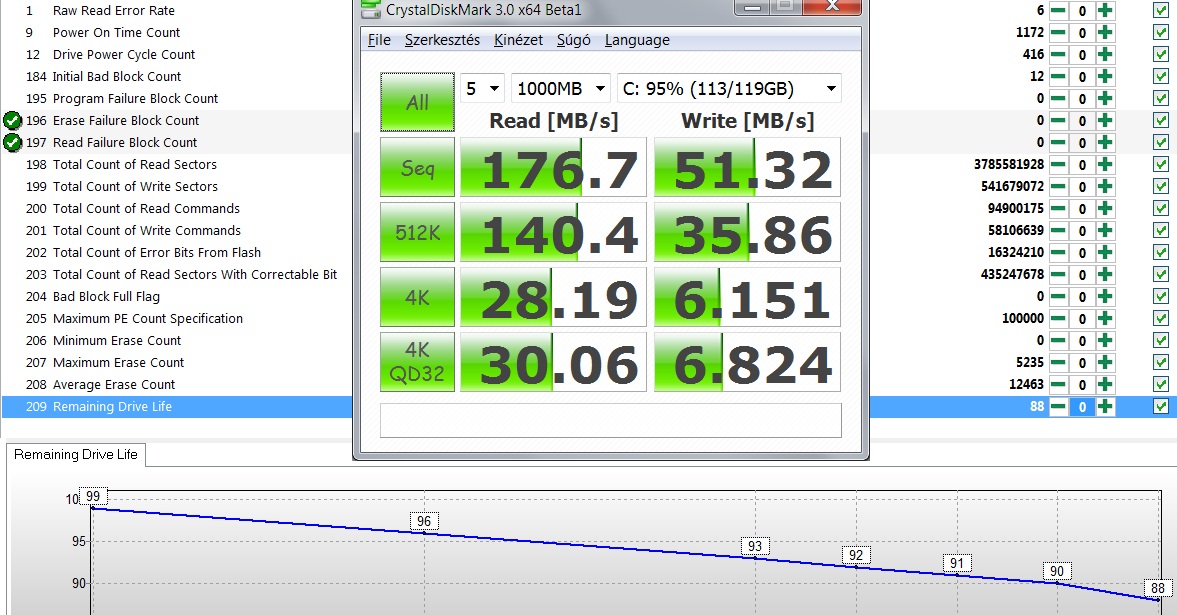
 128GB G.Skill Falcon (II.gen) Win7 x64 ,átlagosan napi 30gb-ot írok az ssd-re. Teljes mértékben erről fut az oprendszer, swapfile, stb, és elég vészjosló dolgokat látok a S.M.A.R.T. infójában az SSD-nek, hogy a 3 hónap alatt 99%-os kondícióról 88%-ra csökkent rohamosan a remaining lifetime-ja a meghajtónak...Ahogy emlékszem 1.5milló óra élettartamot ígért a gyártó anno erre a cuccosra, de gondolom szinte csak olvasás mellett lenne ennyi ideje meghibásodás nélkül...
1. Szerintetek ez a S.M.A.R.T.-os 88%-os jelenlegi élettartam-dolog mennyire komolyan vehető ? (kép mellékelve)
2. Esetleg firmware frissítést lehet alkalmazni ennél az SSD-nél ? (MLC) ha igen, akkor hogyan?
3.Miben nyílvánul meg az esetleges elromlás ? Lelassul a meghajtó ? Teljes se kép se hang effekt, és minden adat elveszik ?
4. Esetleg más is tapasztalt ilyen mértékű százalékos lifetime csökkenési adatot a S.M.A.R.T.-ban? Aki esetleg megnézné a sajátját, annak nagyon megköszönném , mert kíváncsi lennék ilyenre volt-e már valakinél példa. Mert ez a 88%os kondíció egy vicc :S


 ) - a legújabb bios van fent, de nem hinném, hogy bios probléma
  De én is valószínűsítem, hogy ez már lassan kukaérett SSD


Aktív témák
- BestBuy topik
- Ha az alaplapi hangchipnél jobbra váltanál, itt az új Sound Blaster hangkártya
- Kés topik
- Milyen routert?
- Kecskemét és környéke adok-veszek-beszélgetek
- Samsung Galaxy Felhasználók OFF topicja
- Így ismerd fel AI nélkül az AI képeket!
- Feketelista, avagy a rossz boltok topicja
- OLED TV topic
- Fogyjunk le!
- További aktív témák...
- GYÖNYÖRŰ iPhone 12 mini 256GB Red -1 ÉV GARANCIA -Kártyafüggetlen, MS3627
- Beszámítás! MSI Gaming Cyborg A15 FHD Gamer notebook - R5 240 16GB DDR5 512GB SSD RTX 5050 8GB
- Újszerű Samsung NVMe m.2 PM9A1 512GB 27% ÁFA
- iPhone 15 Pro Max 256GB 100% (1év Garancia)- ÚJ EREDETI AKKUMULÁTOR - AKCIÓ
- BESZÁMÍTÁS! MSI B450 R5 5600X 16GB DDR4 512GB SSD RTX 2070 Super 8GB Rampage SHIVA Adata 600W
Állásajánlatok

Cég: Laptopműhely Bt.
Város: Budapest